

Objective
Identify Components & Connect to the Raspberry Pi
Introduction
In this lab, you will begin working with the Raspberry Pi. You will learn to:
- Identify the main components of the Raspberry Pi
- Power on and configure the device
- Connect to it using SSH from your own computer
- Change the default password for security
These steps will prepare you for all future labs and project work.
Instructions
Unpack the Raspberry Pi
- Carefully remove the Raspberry Pi from its box.
- Handle it carefully, as it contains sensitive hardware.
Identify Components
Examine the Raspberry Pi board and locate the following:
- CPU (Central Processing Unit): Executes instructions and calculations
- Memory (RAM): Temporary storage for running programs
- USB Ports: Interfaces for keyboards, mice, or other peripherals
- HDMI Port: Connects to a display
- GPIO Pins: Interfaces for sensors and other electronics
- SD Card Slot: Holds the operating system and storage
- Ethernet Port: Provides wired network connectivity
Power On the Device
- Insert the microSD card with the pre-installed operating system
- Connect the Raspberry Pi to a power supply
- Observe the lights on the device to confirm it is functioning properly
Connecting via SSH
Step 1: Network Setup
- Connect your computer to the same Wi-Fi network as the Raspberry Pi
- Your instructor will provide the SSID
Step 2: Hostname and Credentials
- Each Pi has a unique hostname:
piNNNN, whereNNNNis your assigned number - Default login:
- Username:
piNNNN - Password:
piNNNN
- Username:
Step 3: Running the SSH command
OpenSSH is available on all primary platforms, available through the terminal program(s).
-
Windows:
cmd,powershell, or Windows Terminal -
MacOS:
Terminal -
Linux:
Terminal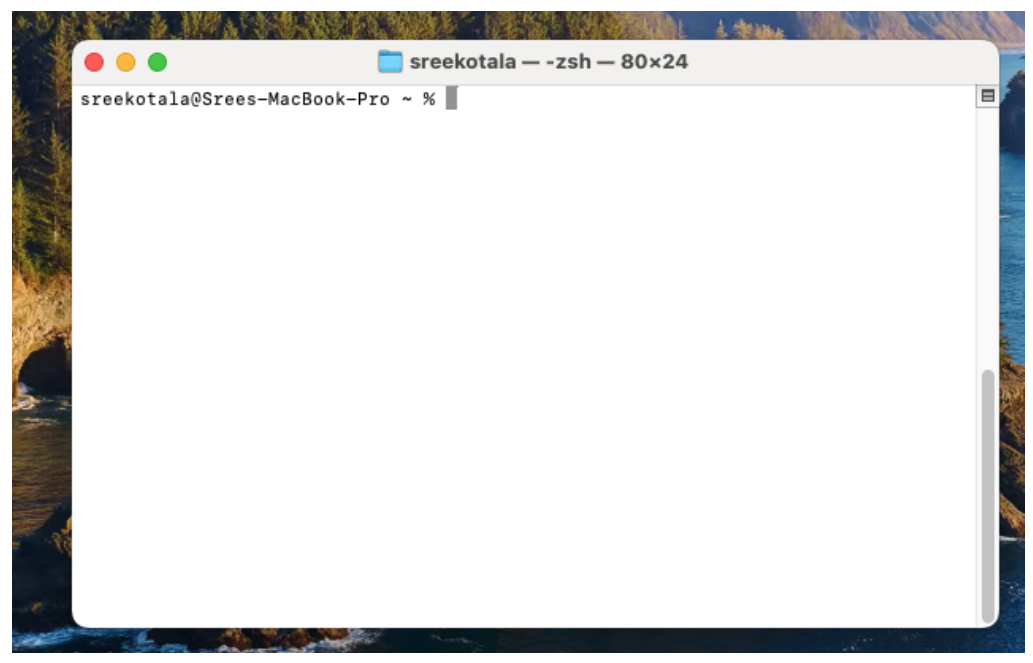
After launching the terminal program of your choosing, you can run the ssh command to initiate an ssh session. (replace NNNN with your Pi’s number)
ssh piNNNN@piNNNN.kale
You will be asked to authenticate, enter the default password piNNNN. (replace NNNN with your Pi’s number)
You will then be prompted to change the password. Choose a secure one and ensure everyone in your group knows it.
Shut Down and Power Off
When you finished using the raspberry pi, you can shut down the Raspberry Pi from within the ssh session.
sudo shutdown -h now
This will:
- Save files to the SD card
- Stop running programs
- Power down the Raspberry Pi
Once shutdown is complete, you may disconnect the power.
On Linux and MacOS, the command to shutdown the Pi is identical to the command to shutdown your own computer. If the intention is to turn off the Pi, then ensure that you enter the command within the ssh session.
Summary
By completing this lab you have:
- Identified the key components of the Raspberry Pi
- Powered on and configured the device
- Connected via SSH
- Changed the default password
You are now ready to continue with future labs and project work.